Android apps were built for phones, yet many of them shine brighter on a larger screen. People often search information about download apps on PC because tapping glass all day gets old fast. Unfortunately, some apps cannot run directly on Windows or macOS, so an Android emulator becomes the bridge. Tools like NoxPlayer recreate a mobile system inside a desktop shell, making this switch possible. This setup feels like translating a language both systems understand. Once running, the desktop stops feeling locked to desktop-only software.
Why Android Apps Make Sense on PC
Many Android apps are lightweight and efficient compared to desktop software. They boot fast, consume less storage, and focus on one task at a time. On a PC, this efficiency feels refreshing. The app does its job and gets out of the way. There is less background noise, draining resources. That clarity helps users stay focused. Productivity apps benefit the most from this setup. Note tools, file managers, and communication apps gain precision from mouse input. Larger screens reduce eye strain during long sessions. It feels like upgrading a compact car to a wider road. Text becomes easier to scan. Controls feel less cramped.
Performance Gains That You Get on Desktop Hardware
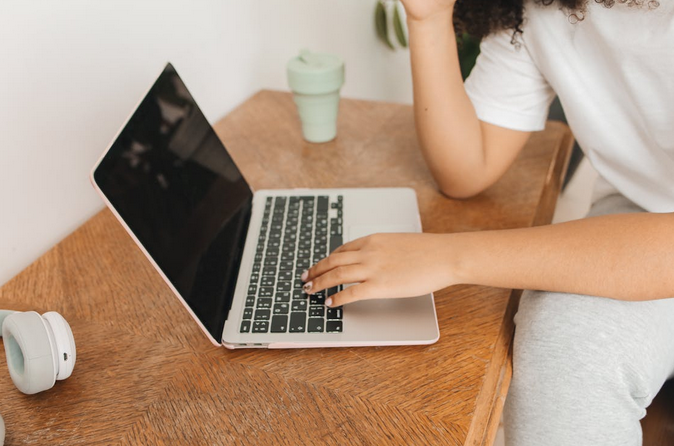
PC hardware offers stronger CPUs and more memory than most phones. Android apps running through emulation can tap into that headroom. Animations smooth out, and background tasks stop choking performance. Multitasking becomes less painful. Frame drops appear less often. Thermal limits also improve. Phones throttle under load, while desktops keep breathing. Apps that stutter on mobile often stabilize on PC. This difference shows during extended use. Long sessions feel less stressful on the hardware. Fans handle the load better than batteries.
Cases That Fit PC Environments Best
Creative apps benefit from precise control. Drawing tools respond better to a mouse or tablet input. Video editing apps gain clarity on larger displays. Fine adjustments stop feeling cramped. Pixel-level edits become manageable. Accuracy improves without extra effort. Utility apps also shine here. File transfer tools, scanners, and automation apps become easier to manage. Keyboard shortcuts speed up routine actions. Workflows feel tighter and less scattered. Repetition becomes faster to handle. Tasks stack neatly instead of colliding.
System Limits and Compatibility Notes

Android apps expect touch gestures by default. On PC, these gestures map to clicks and drags. Most apps adapt well, but some feel awkward. This is a tradeoff users should expect. Learning curves vary by app. Patience helps during early use. Storage paths also differ. Apps store data inside virtual directories. Accessing files requires basic emulator awareness. Once understood, it stops being a hurdle. File sharing becomes predictable. Organization improves with practice.
How to Install Android Apps on PC Using NoxPlayer
NoxPlayer acts as a virtual Android device on desktop systems. After installing it, users sign in to the Play Store inside the emulator. Apps install exactly as they do on phones. The process feels familiar. No special permissions are required. Setup time stays short. Once launched, apps run in resizable windows. Keyboard mapping replaces touch controls where needed. Performance settings allow CPU and RAM adjustments. This flexibility keeps apps stable during long runs. Users can tune settings per task. Control stays in their hands.
Running Android apps on PC is no longer a hack. It is …
 Performing an online background search can provide numerous benefits for you. Firstly, it can help you verify the credibility of a person or company before engaging in any business transactions with them. This is especially important if you hire someone for a job or rent your property to tenants.